
Hausdorff Research Institute for Mathematics
The Hausdorff Research Institute for Mathematics (HIM) organizes international long-term programs devoted to topics in mathematics and mathematical economics.
Bringing together a critical mass of expertise and scientists at one place and providing an inspiring mathematical atmosphere, the activities at HIM initiate research at the forefront of mathematics in its full breadth. HIM gives mathematicians the opportunity to work on challenging projects undisturbed and for longer periods, and to discuss them with leading experts in their field. This leads to a substantial output of research results of the highest quality, initiated, pursued and sometimes even completed during the programs.
Due date for Applications:
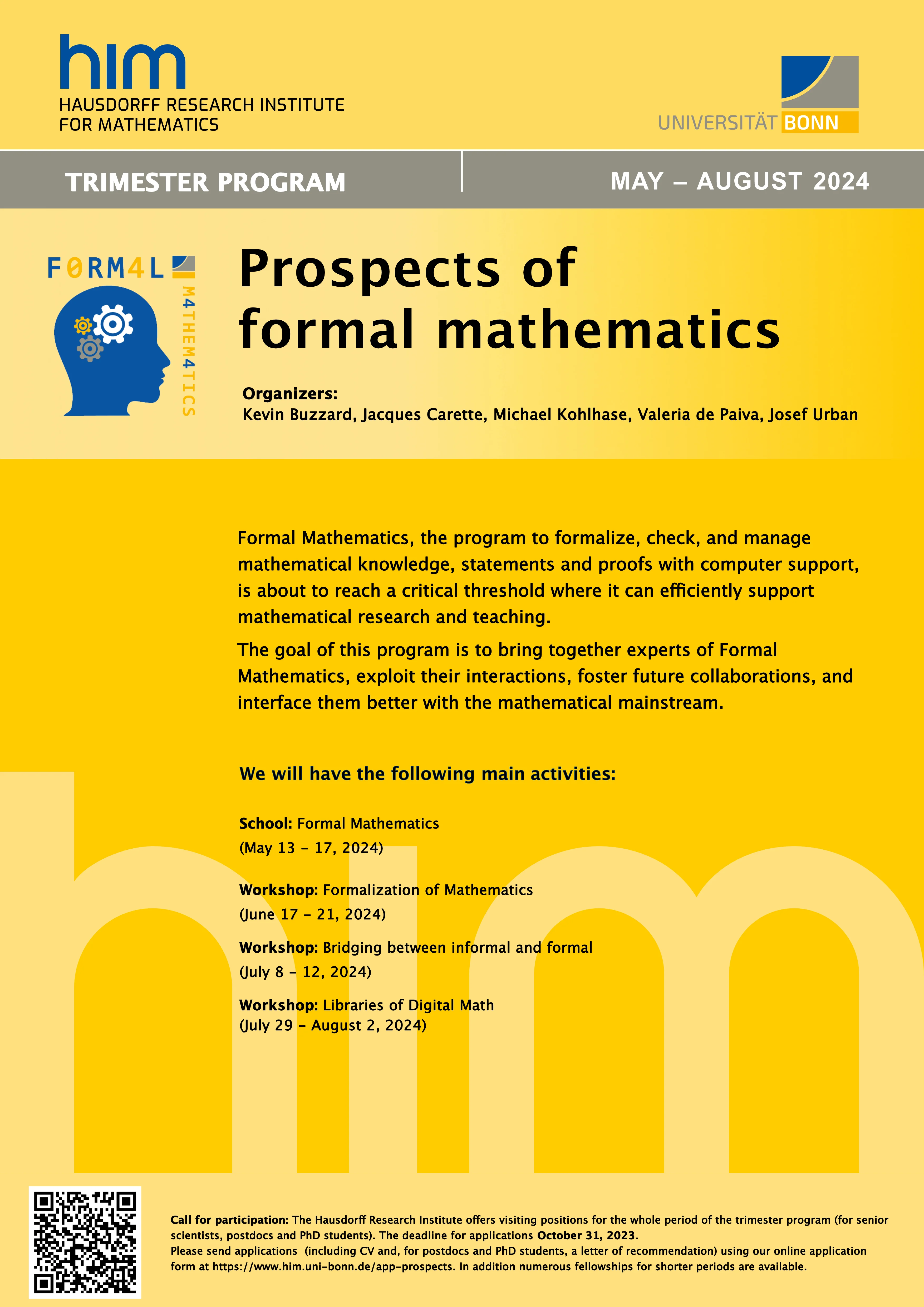
May 15, 2024
Due date for Applications:
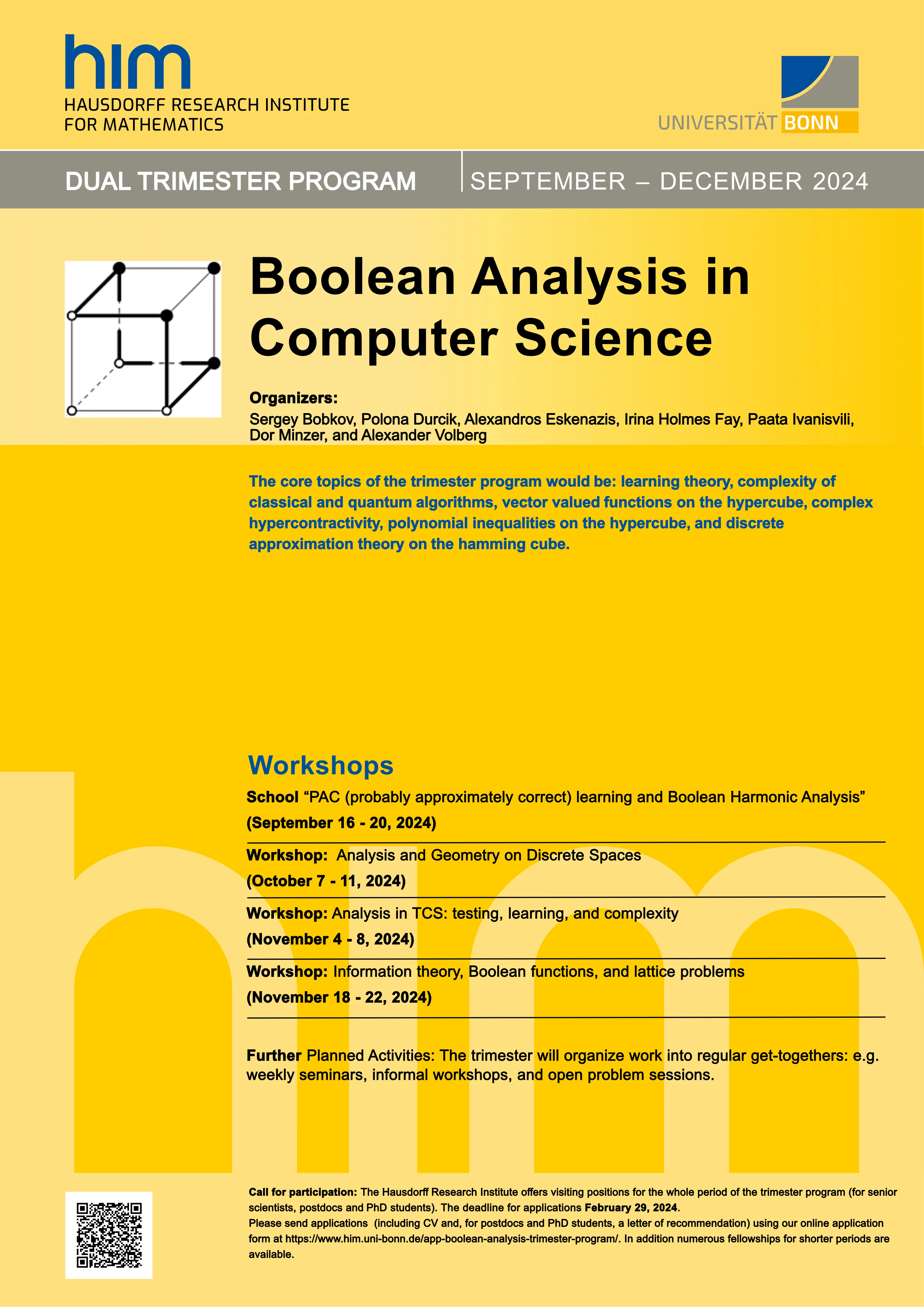
July 1, 2024
Due date for Applications:
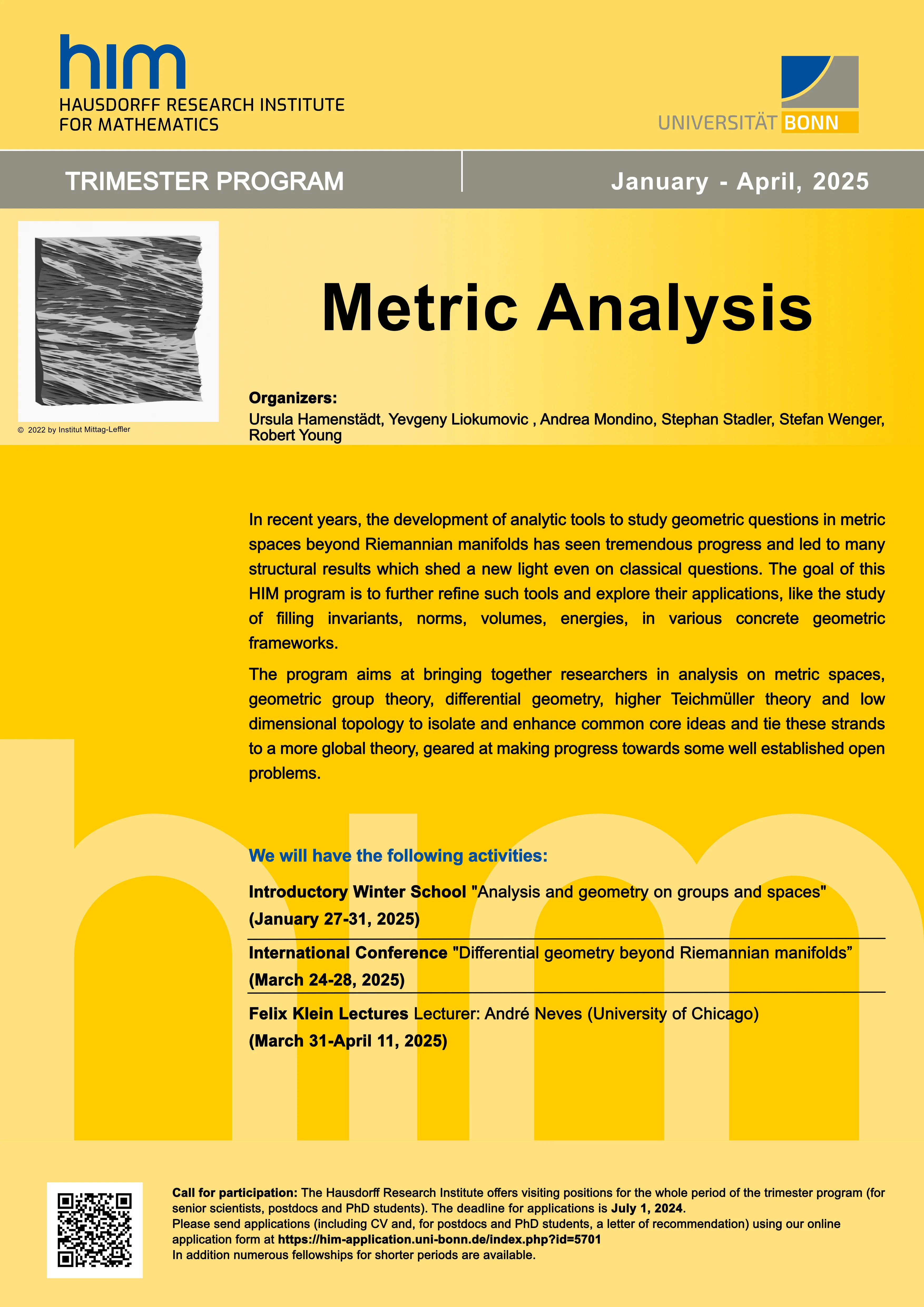
October 31, 2024
Current program
Upcoming programs
HIM Directors

Prof. Christoph Thiele

Prof. Sven Rady
> 60
Trimester Programs
> 3000
International Visitors
> 1700
Video Recordings
HIM Programs Coordination - Poppelsdorfer Allee 82
Contact for current and prospective program organizers and contact for HIM guests.
Cécile Kühn
+49 228 73-62247
Silke Steinert-Berndt
+49 228 73-4831
Office Hours:
Mon - Fri: 9:00 - 12:00
Address:
2. floor
Poppelsdorfer Allee 82
53115 Bonn
HIM Administrator -
Poppelsdorfer Allee 45
Point of contact and administration in the HIM Building, Assistant to the HIM Director
Petra Serr
+49 228 73-4885
Office Hours:
Mon - Fri: 08:30 - 14:30
Address:
Room 19, 1. floor
Poppelsdorfer Allee 45
53115 Bonn